Video Playlist
Use the Video Playlist component to display multiple YouTube or Vimeo videos in an organized, filterable layout.
Definition
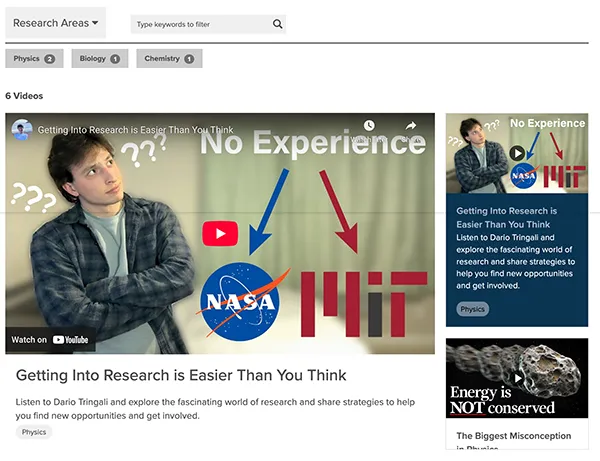
The Video Playlist component allows content creators and managers to display and organize multiple YouTube or Vimeo videos within a single, structured layout.
It includes:
- An embedded video player
- A selectable list of videos
- Optional thumbnails, descriptions, and category labels
- Optional filtering by category or keyword|
Video Playlists are ideal for:
- Tutorial series
- Lecture recordings
- Event recaps
- Training modules
- Thematic video collections
Specifications
Supported Video Sources
- YouTube (full URL required)
- Vimeo (full URL required)
Layout Options
- Player with Vertical Playlist
- Player with Horizontal Playlist
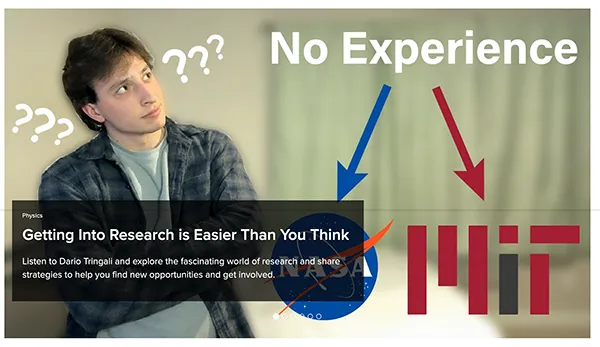
- Carousel
Note: The carousel layout does not support filtering or autoplay features.
Thumbnail Requirements
Uploading a custom thumbnail is optional but recommended.
- Maximum file size: 1.5 MB
- Allowed file types: png, gif, jpg, jpeg
- Images larger than 2000 x 2000 pixels will be resized automatically.
Filtering Behavior
- Use predefined Taxonomy Terms.
- Videos may belong to multiple categories.
- Categories must be separated by commas.
- Category Label is set per playlist and is not site-wide.
- Category and keyword filtering are unavailable in carousel layout.
How to Create a Video Playlist
- Start with a Landing Page in Edit mode.
- Select Page Section.
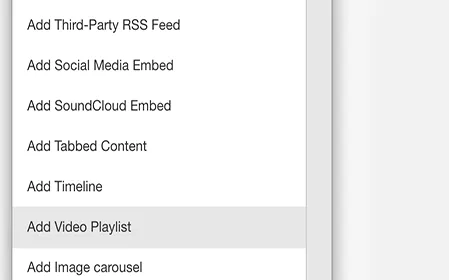
- Click on the chevron, then select Add Video Playlist.
- Configure playlist settings; title is optional and appears above the playlist.
Choose a Layout
Select how your playlist will display:
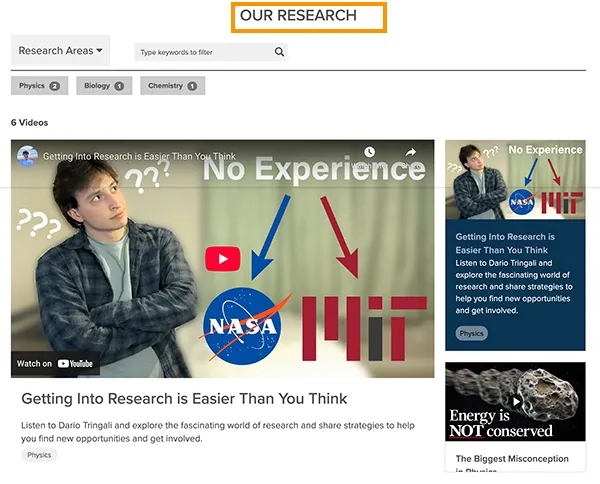
- Vertical playlist, main video player with videos listed vertically beside it
- Horizontal Playlist, main video player with videos listed horizontally below it
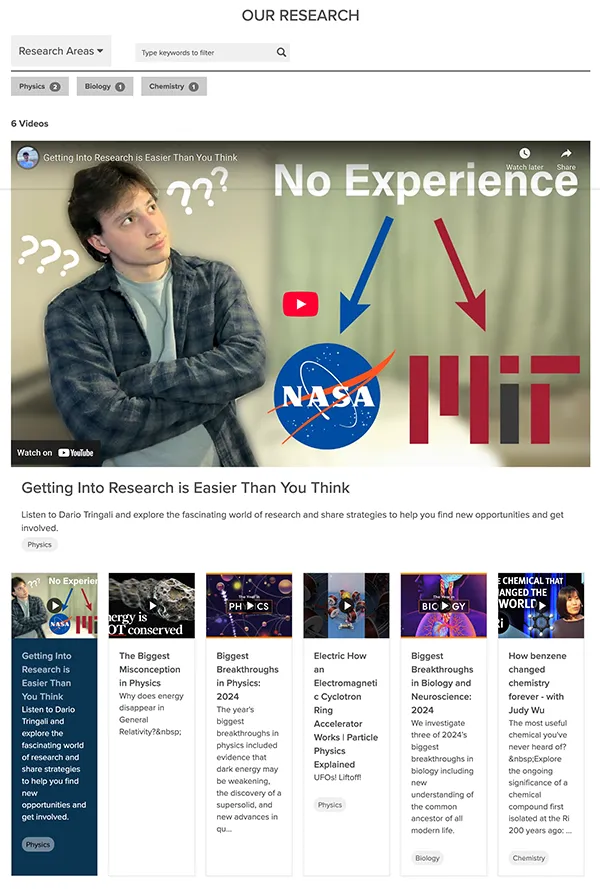
- Carousel, videos displayed in a scrolling carousel format
Configure Playback Options
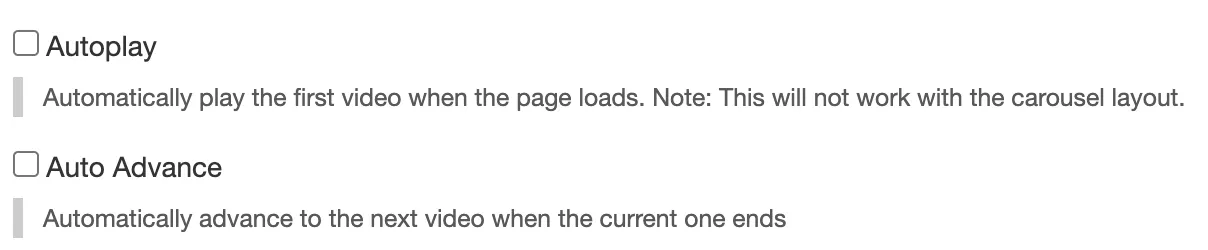
The default behavior is user-controlled interactions, but it is also possible to configure additional playback settings.
- Autoplay, which is not available with the carousel layout, automatically plays the first video when the page loads.
- Auto-advance automatically advances to the next video when the current one ends.
Set a Category Label
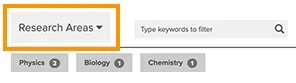
The Category label is optional and allows content managers to customize how video categories are displayed.
- Example labels: Research, Arts, Information Sessions
- The label is specific to this playlist.
- Create a different label for each playlist.
These categories are different from the site-wide labels available in Site Settings.
Add Video Items
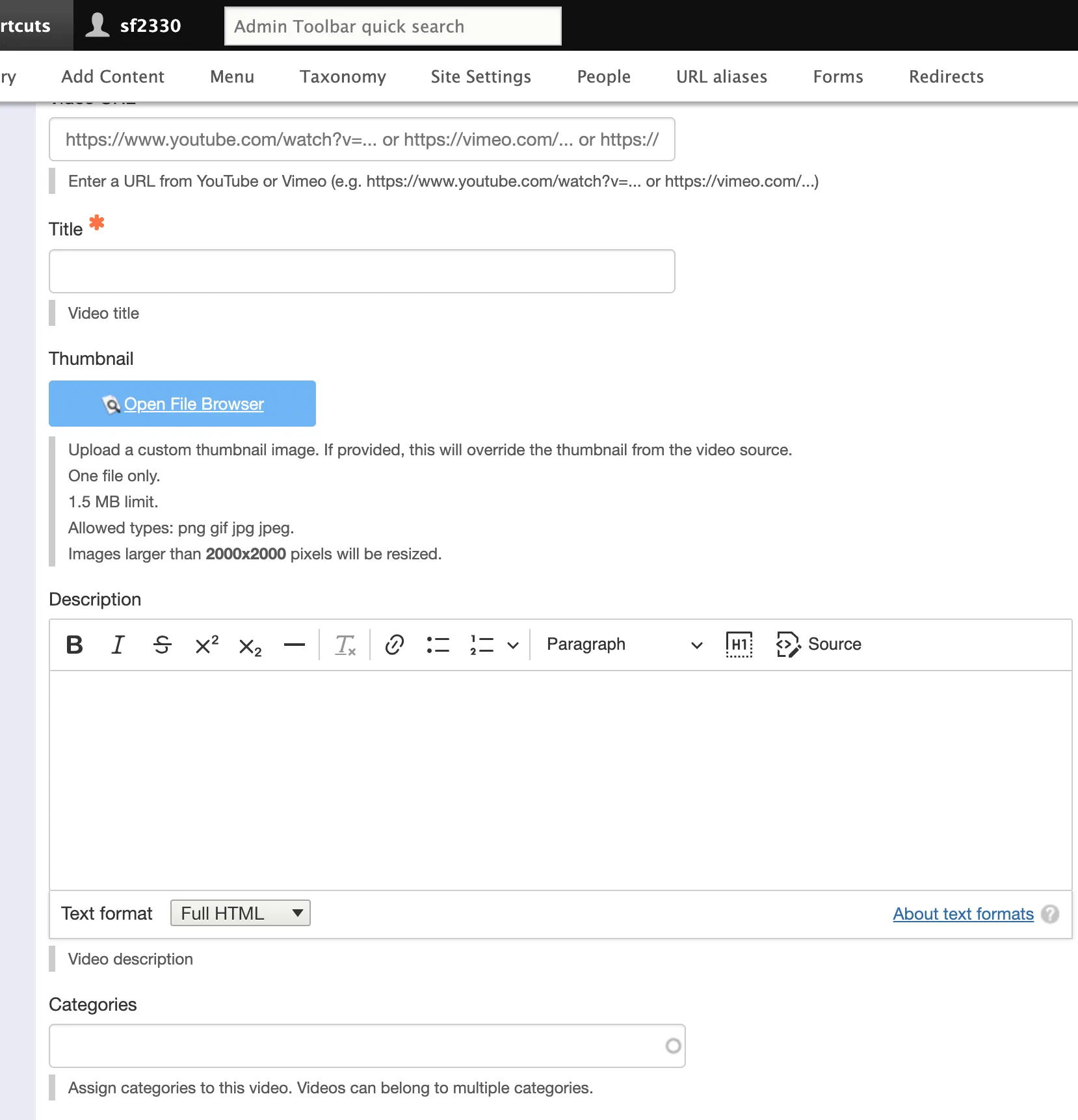
Each playlist is made up of individual Video Items. For each video, complete the following fields:
- Video URL - paste a full link from YouTube or Vimeo.
- Enter a title.
- Optionally, upload a thumbnail (png, gif, jpg, jpeg), maximum 1.5 MB no larger than 2000 x 2000 px.
- Enter a short description of the video.
- Assign predefined taxonomy categories; videos may belong to multiple categories, separated by commas.
To add more videos, click Add Video Item and repeat the process for each video.
Display Options
These settings control what information appears in the playlist next to each video.
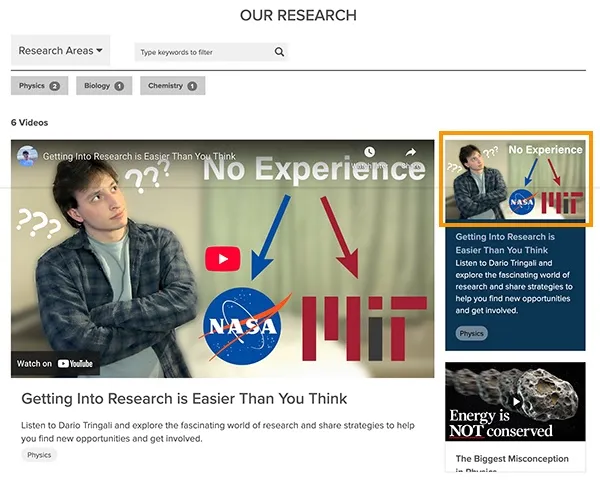
Show Thumbnail
- Displays the thumbnail image for each video in the playlist list.
- If a custom thumbnail was uploaded, that image will appear.
- If not, the default YouTube or Vimeo thumbnail will display.
- If unchecked, only text elements, such as title, will appear.
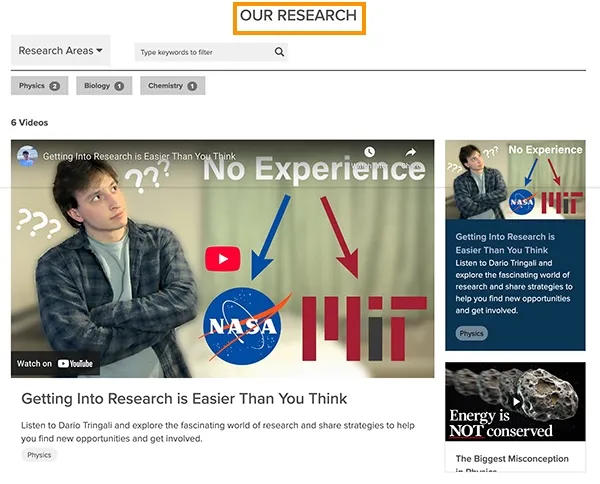
Show Title
This setting determines whether the title of each video is displayed in the playlist. If this box is unchecked, titles will not be visible in the playlist. To increase user engagement by clearly identifying each video, we recommend keeping title display enabled.
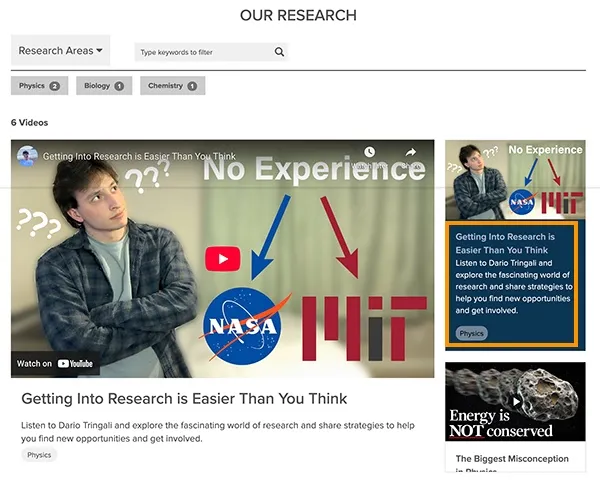
Show Description
- Displays the video description text beneath each title in the playlist.
- Useful for instructional playlists where context is needed.
- If unchecked, descriptions remain hidden from view.
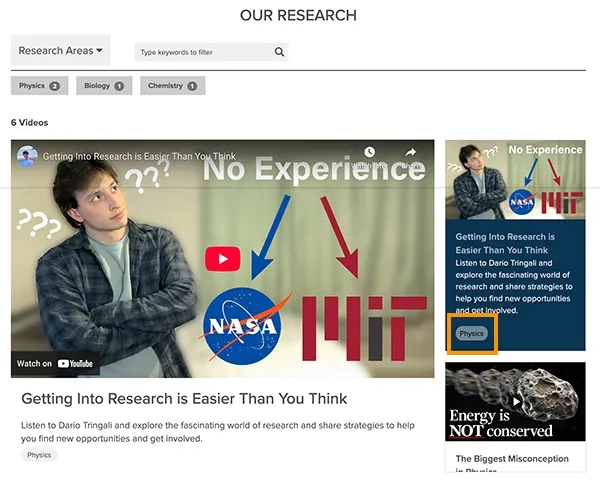
Show Categories
- Displays the assigned category labels for each video.
- Useful when filtering is enabled.
- If unchecked, categories will still function for filtering (if enabled) but will not be visible to users.
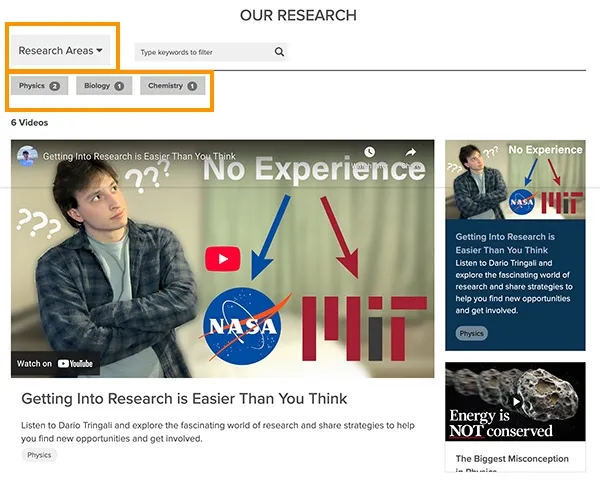
Filtering by Category
- When enabled, this setting displays clickable filter buttons based on assigned categories.
- Users can click a category to show only videos within that category.
- Categories must already be assigned to video items.
- Not available with the carousel layout.
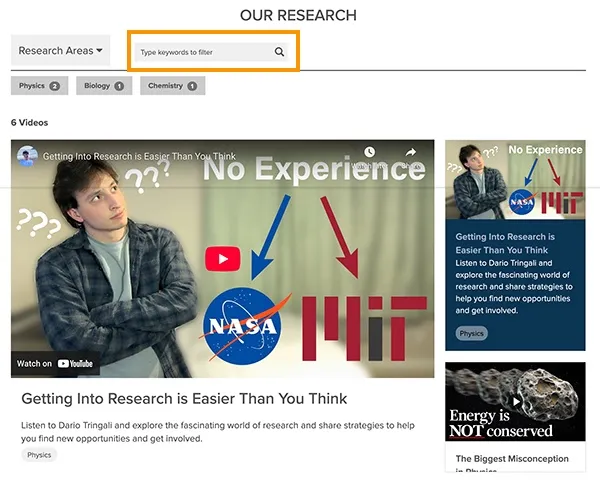
Keyword Filtering
- This setting, when enabled, displays a search field where users can type keywords to filter videos.
- Searches titles and descriptions.
- Helps users quickly find specific content.
- Not available with the carousel layout.
Last Step
Save your Video Playlist to display it according to your selected layout and visibility settings.