Image Gallery: Basic Version
Display an unordered collection of images with captions that appear on hover.
Definition
The basic image gallery enables site editors to upload individual images that will display within a gallery layout. When users hover over an image, a caption appears, providing context or descriptive information.
Usage and Specifications
When to Use
- To create a visually engaging display of research, lab activities, or other image-based content.
- When you want captions to appear on hover, enhancing image context without cluttering the layout.
- As part of a gallery presentation that will be embedded into a Landing page
Specifications
- Image Field: Required; can be uploaded directly or selected from existing media.
- Caption Field: Optional; appears on hover.
- Display Behavior: Images are formatted in a uniform grid with hover captions.
How to create a Gallery Image
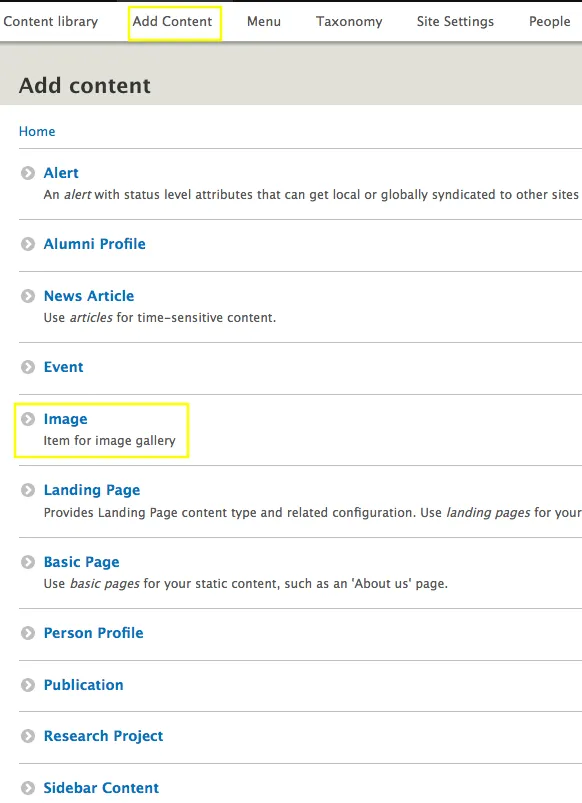
Go to: Shortcuts > Add Content
Select Image from the content option
Upload an Image and Enter a Caption
- Upload a new image or select one from your media library.
- Enter a caption (optional) in the text field.
- The caption displays when the user hovers over the image in the gallery.
- Repeat this process for each image you want to include.
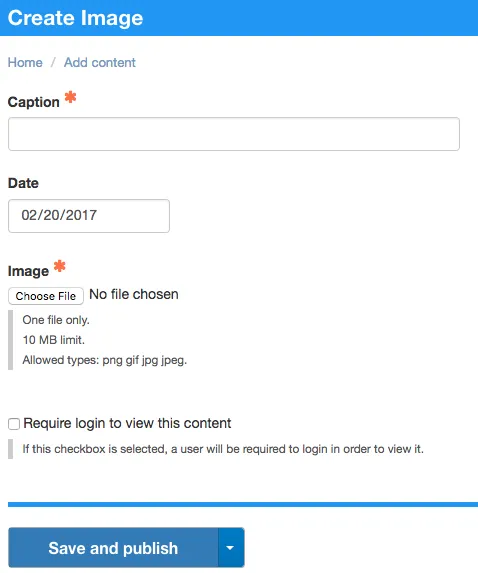
Save the page
Note: Each site can contain only one Basic Image Gallery. After uploading all gallery images, you must create a Landing Page with a Views Display configured to showcase the gallery.