Configuring Columbia Sites Search Tracking in Google Analytics 4 (GA4)
Enable GA4 Site Search tracking to see what visitors are searching for on your website.
Overview
Google Analytics 4 (GA4) can track the search terms visitors enter on your Columbia Sites website. This allows you to understand what users are searching for and identify opportunities to improve your site's content and navigation.
With the recent update to Columbia Sites search, search terms are now passed to Google Analytics using a standard URL query parameter (q=). As a result, GA4 can automatically collect site search data—as long as your property is configured correctly.
Important: Google Analytics only collects search data from the time this feature is configured. Historical search data cannot be recovered.
Older versions of Columbia Sites used AngularJS routing, which stored search information in the URL fragment (the portion after #). Because URL fragments are not sent to Google Analytics, searches could not be tracked.
The current Columbia Sites search uses a dedicated search results page with standard URL query parameters, such as:
https://yoursite.columbia.edu/search?q=financial+aid
Google Analytics recognizes the q parameter as the search term and records it automatically.
Verify your Site Search settings
Most GA4 properties are already configured correctly. However, if your property was customized in the past, you should restore the default search parameters.
Step 1. Open your GA4 property
- Sign in to Google Analytics.
- Select your website's GA4 property.
- Click Admin.
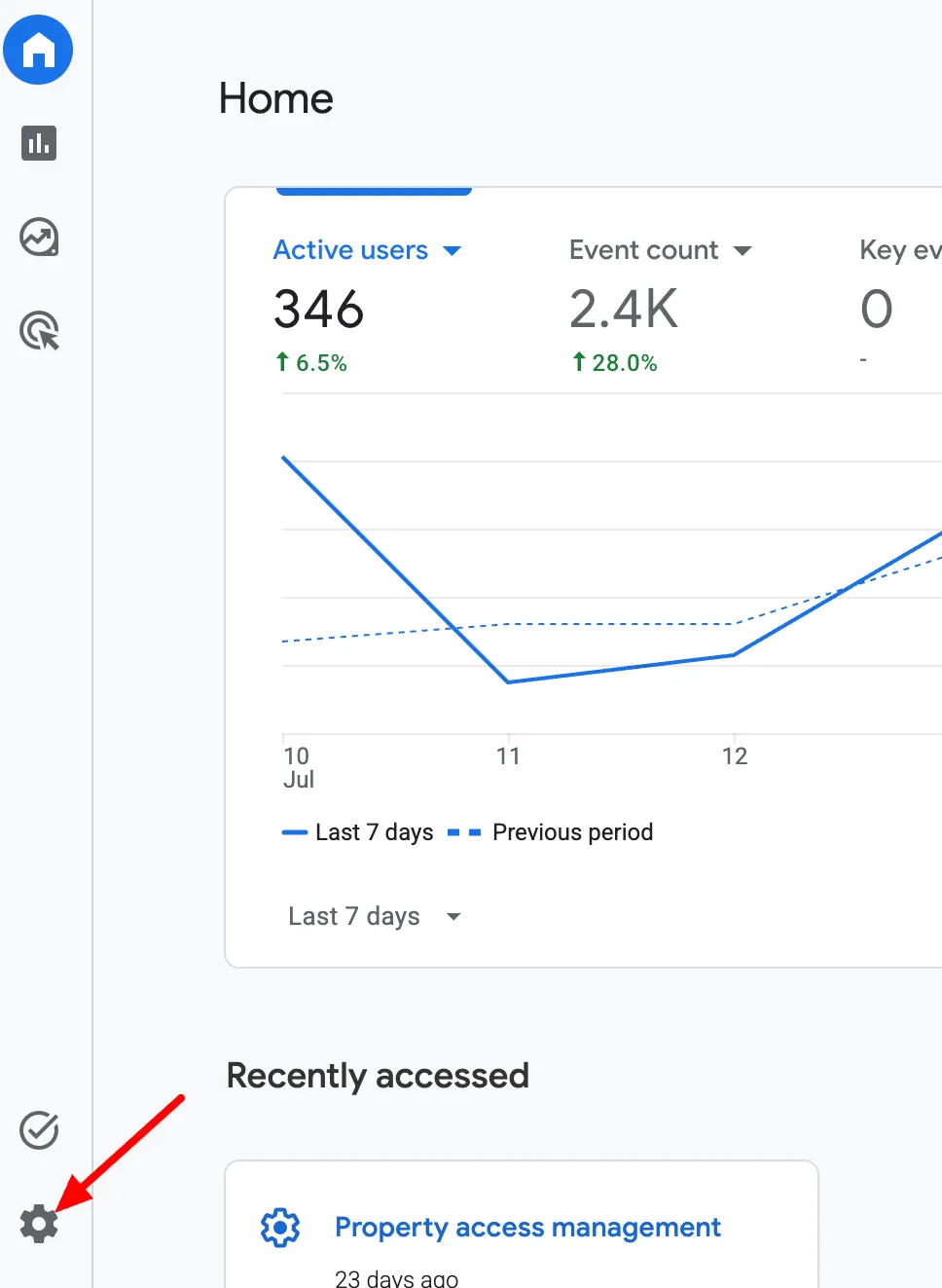
Step 2. Open Data Streams
Under Data Collection and Modification:
- Select Data Streams.
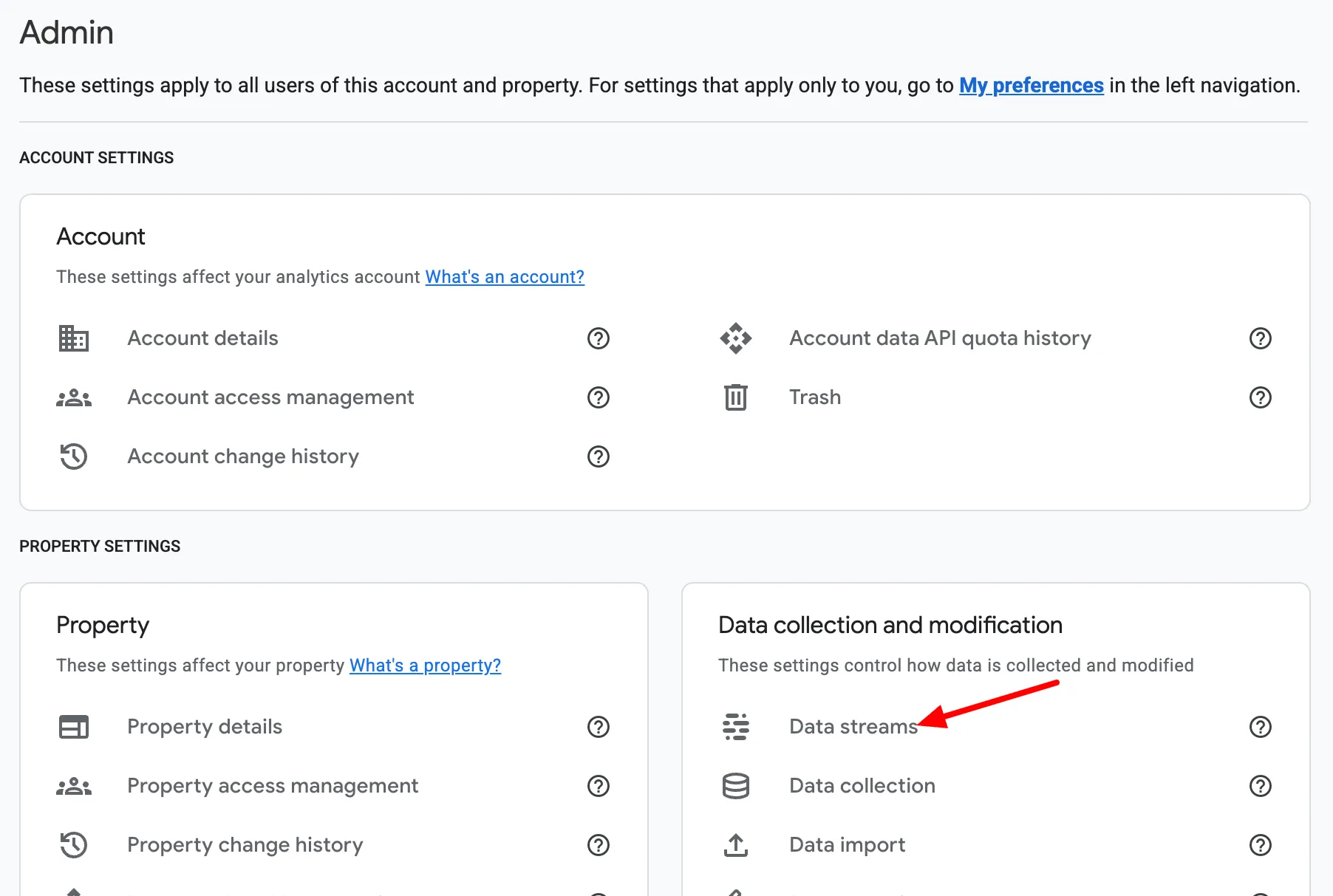
- Click your website's Web data stream.

Step 3. Open Enhanced Measurement settings
- Locate Enhanced Measurement.
- Click the Settings (gear/cog) icon.
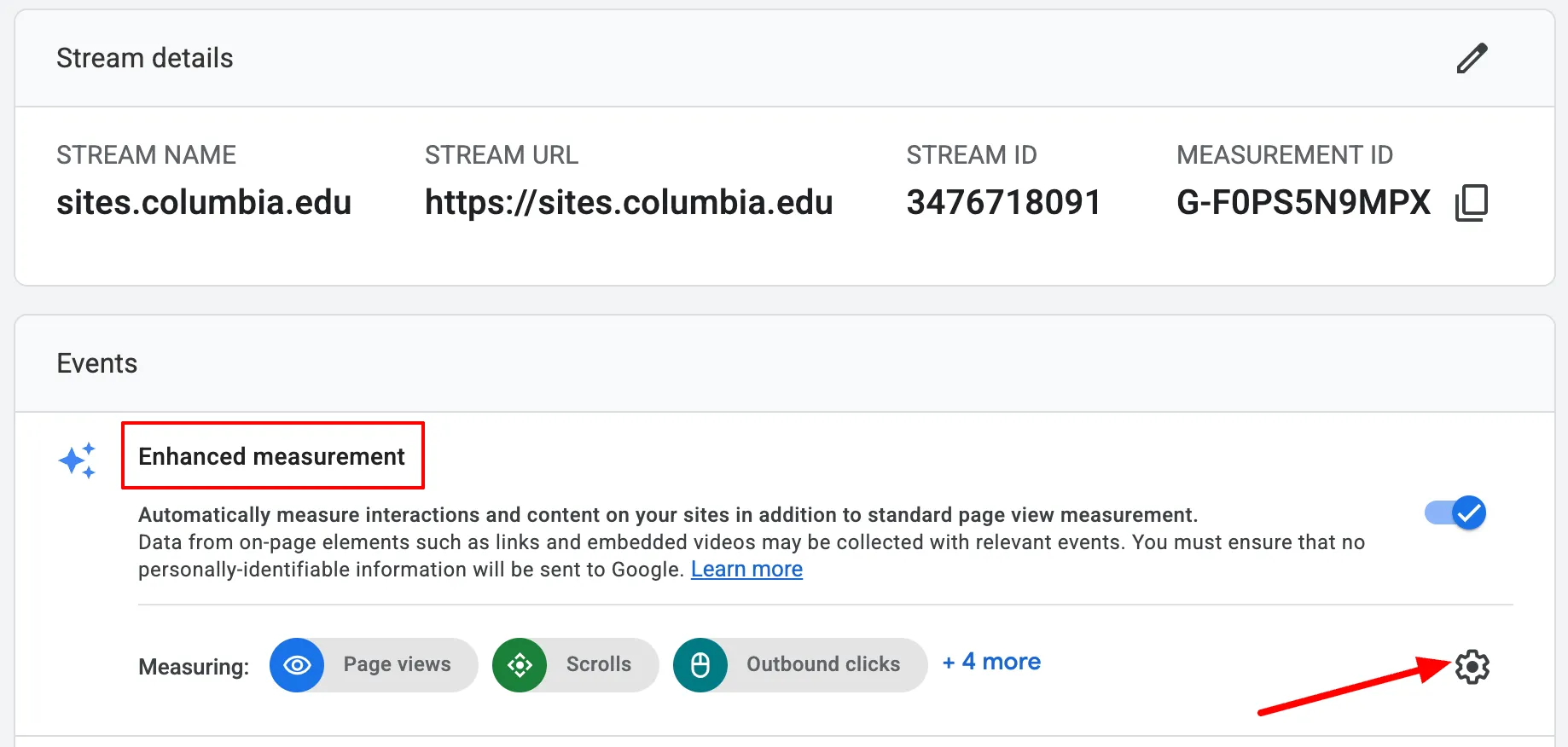
Step 4. Check the Site Search settings
- Expand Show advanced settings under Site Search.
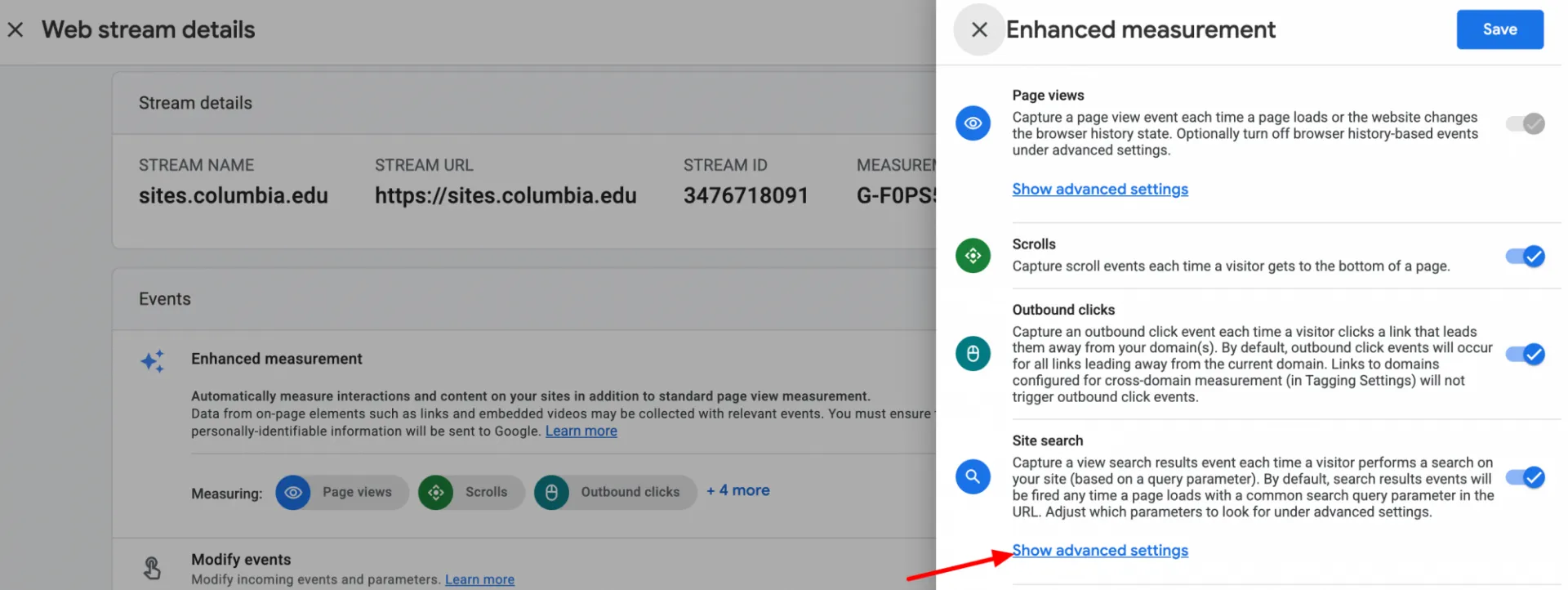
- Verify that the query parameters include the default values:
q,s,search,query,keyword
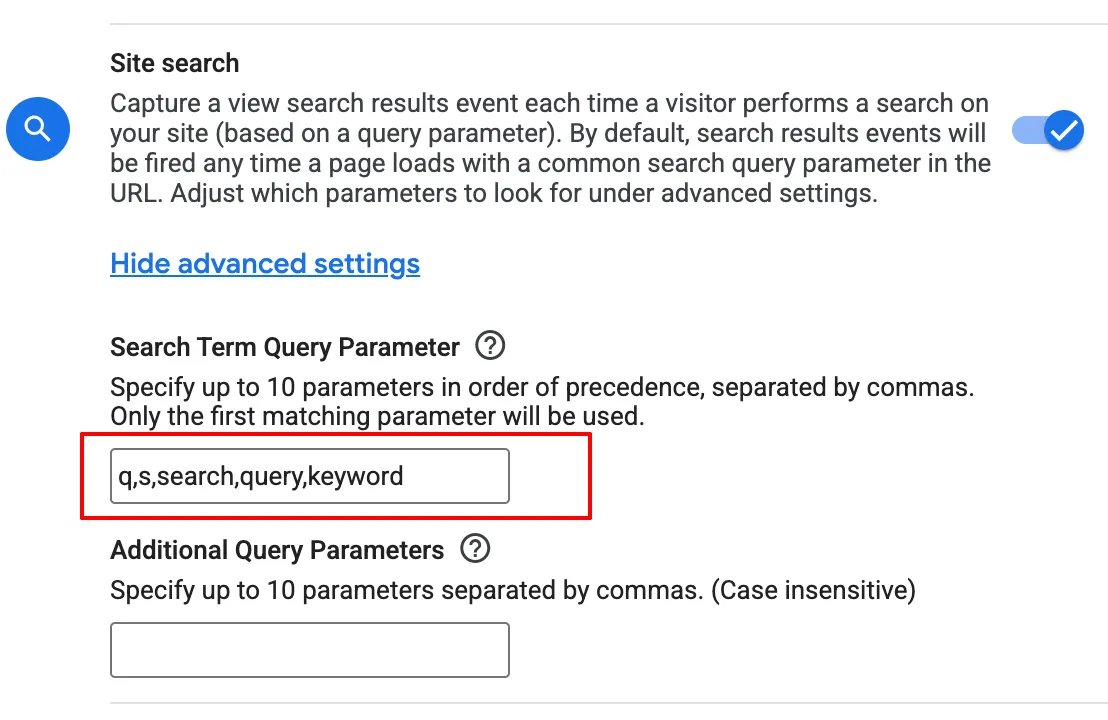
If your settings are different, replace them with the default list:
q,s,search,query,keyword
Using the default configuration ensures compatibility with Columbia Sites and simplifies support.
Viewing Site Search reports
After the configuration is complete and users begin performing searches, you can view search activity in GA4.
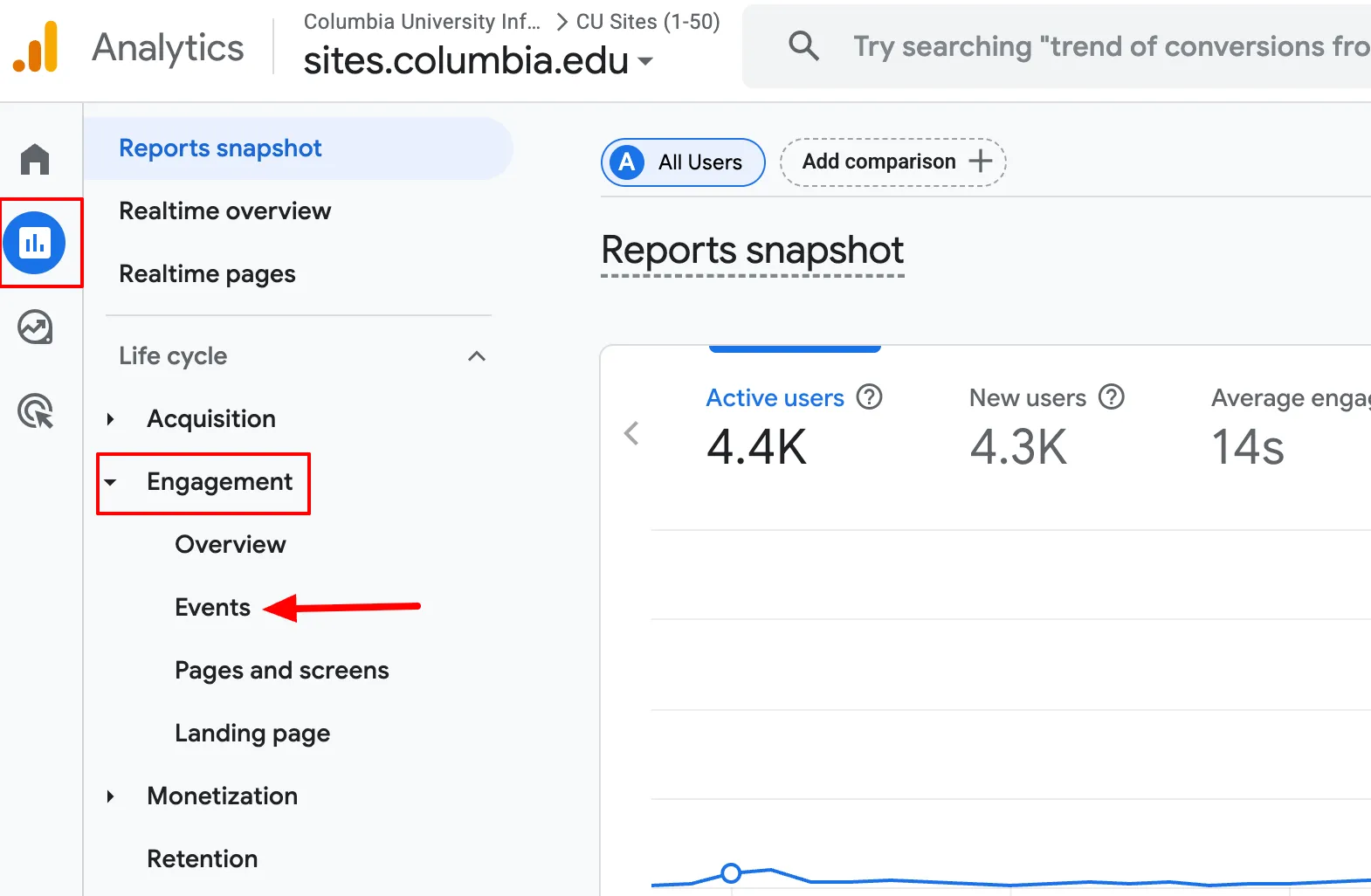
Step 1. Open Reports
Navigate to: Reports → Engagement → Events
Step 2. Open the Events report
Navigate to: Engagement → Events
This report displays all events being tracked for your website.
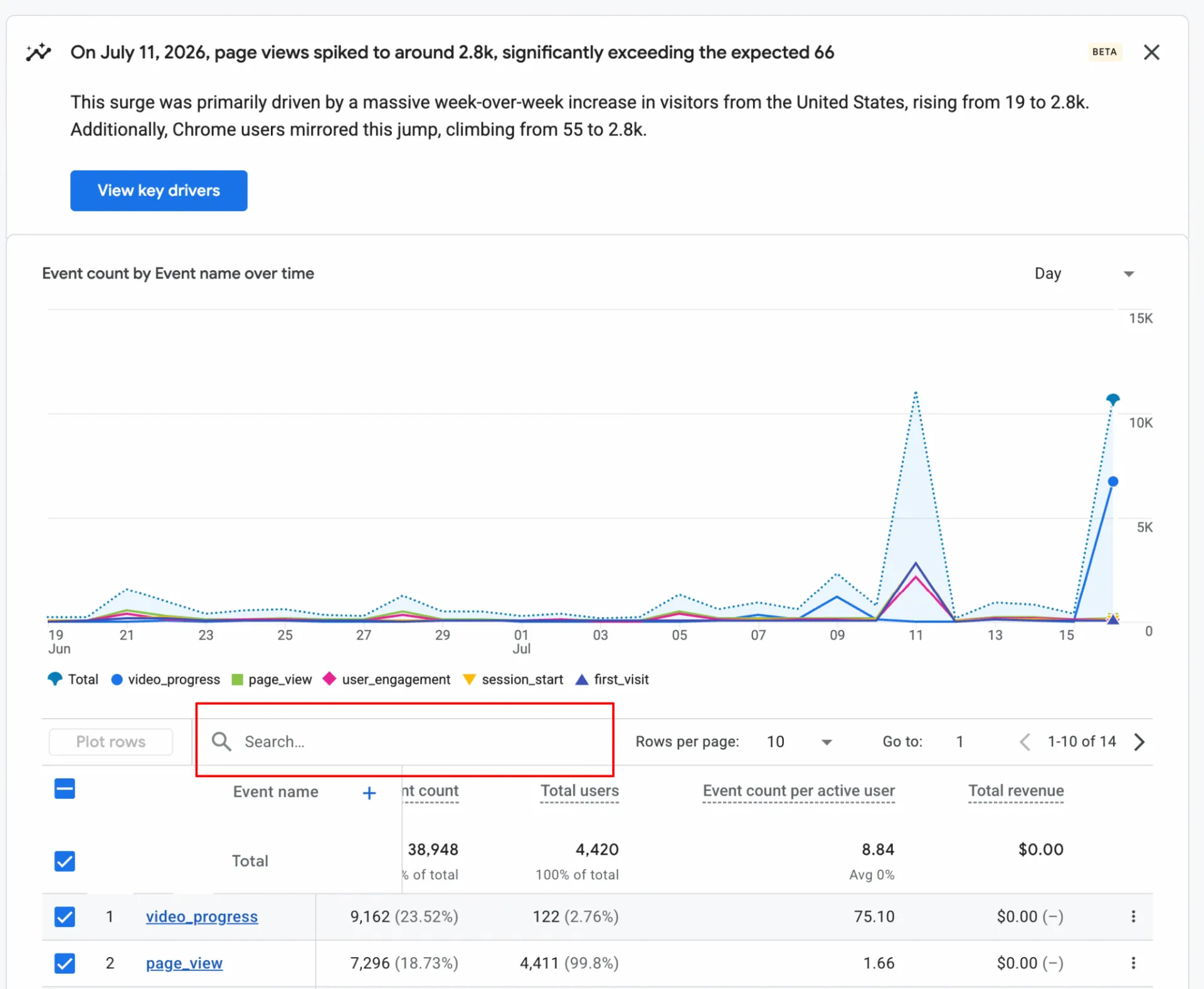
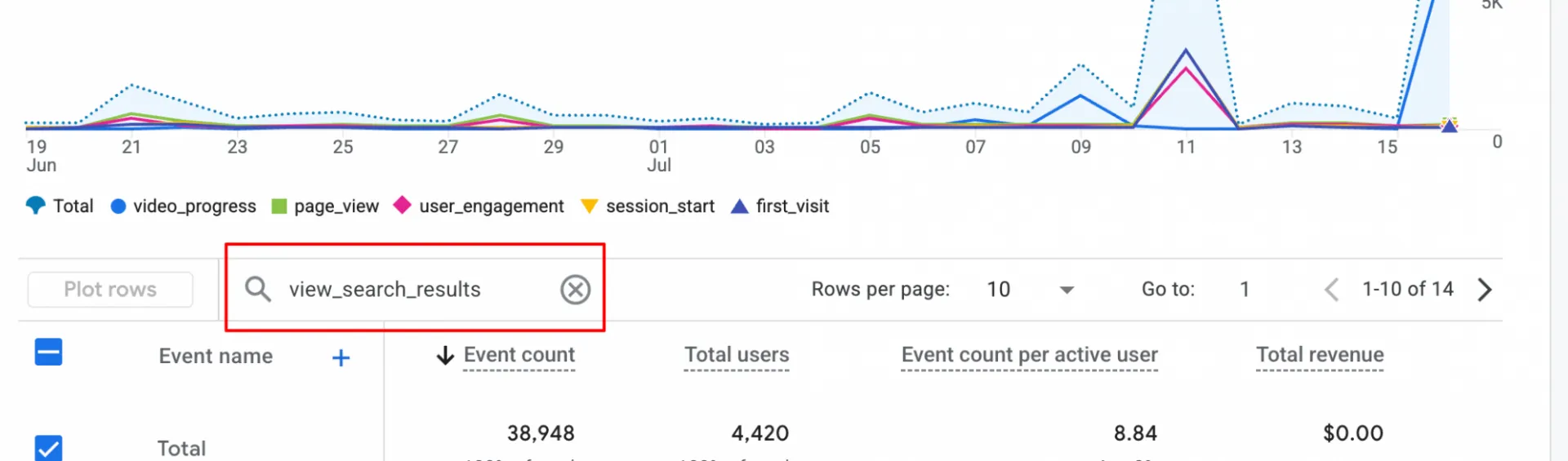
Step 3. Find the Site Search event
Using the search box, type in the following:
view_search_results
Step 4. Open the event details
Click view_search_results to open the event details page.
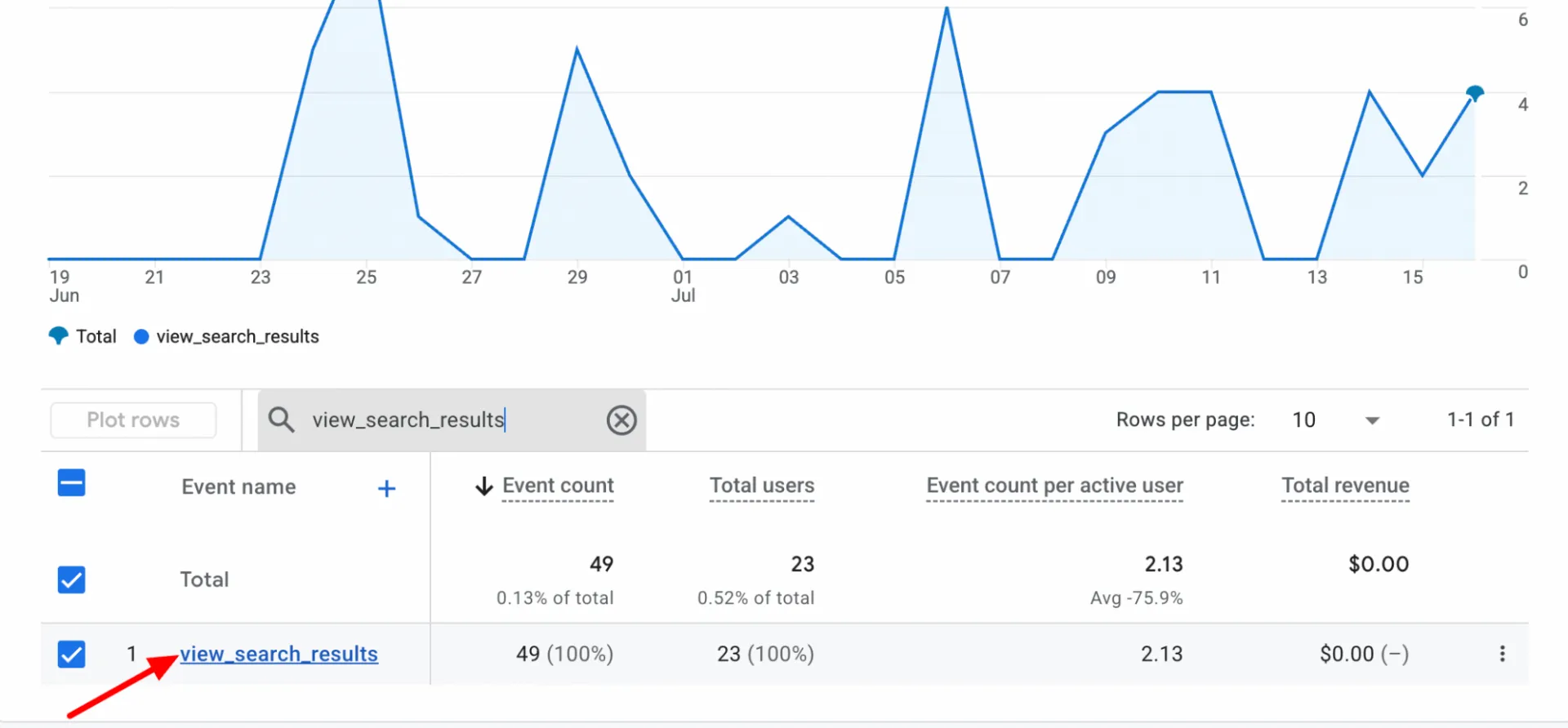
Step 5. Review search terms
The event details display the search terms and phrases visitors entered on your website. Use this information to understand what users are searching for and identify opportunities to improve your site's content and navigation.
Note: Search data is only available for searches performed after the Site Search configuration has been completed.